This page explains how to work with monitoring templates, including how to find, filter, copy, create, and assign templates to your resources.
Before you begin, verify that you have the required permissions to work with templates.
Find Templates
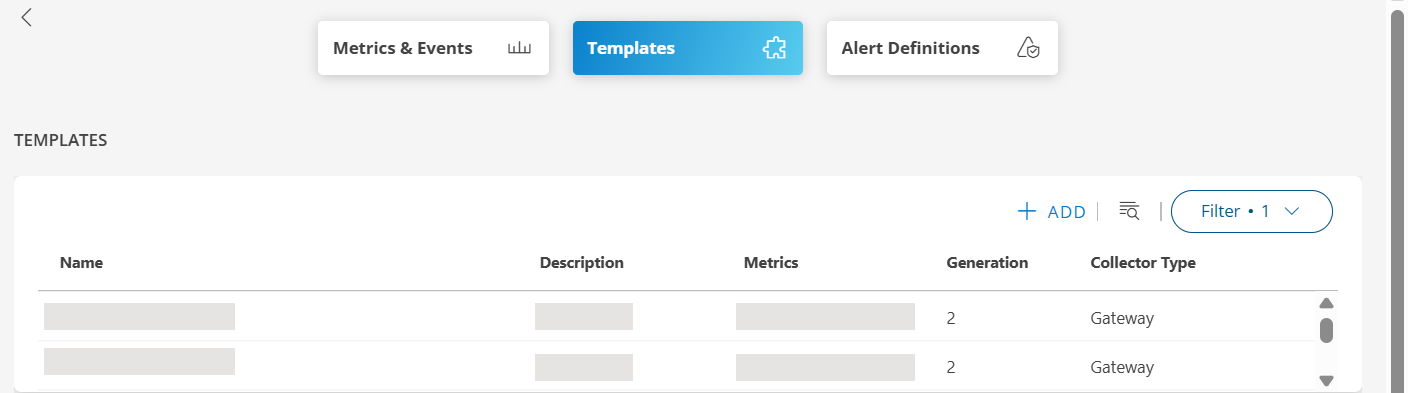
To locate monitoring templates:
- Log in to the OpsRamp portal.
- Navigate to Setup > Account > Monitoring.
- Select the Templates tab.
The system displays a list of all available templates.
Filter Templates
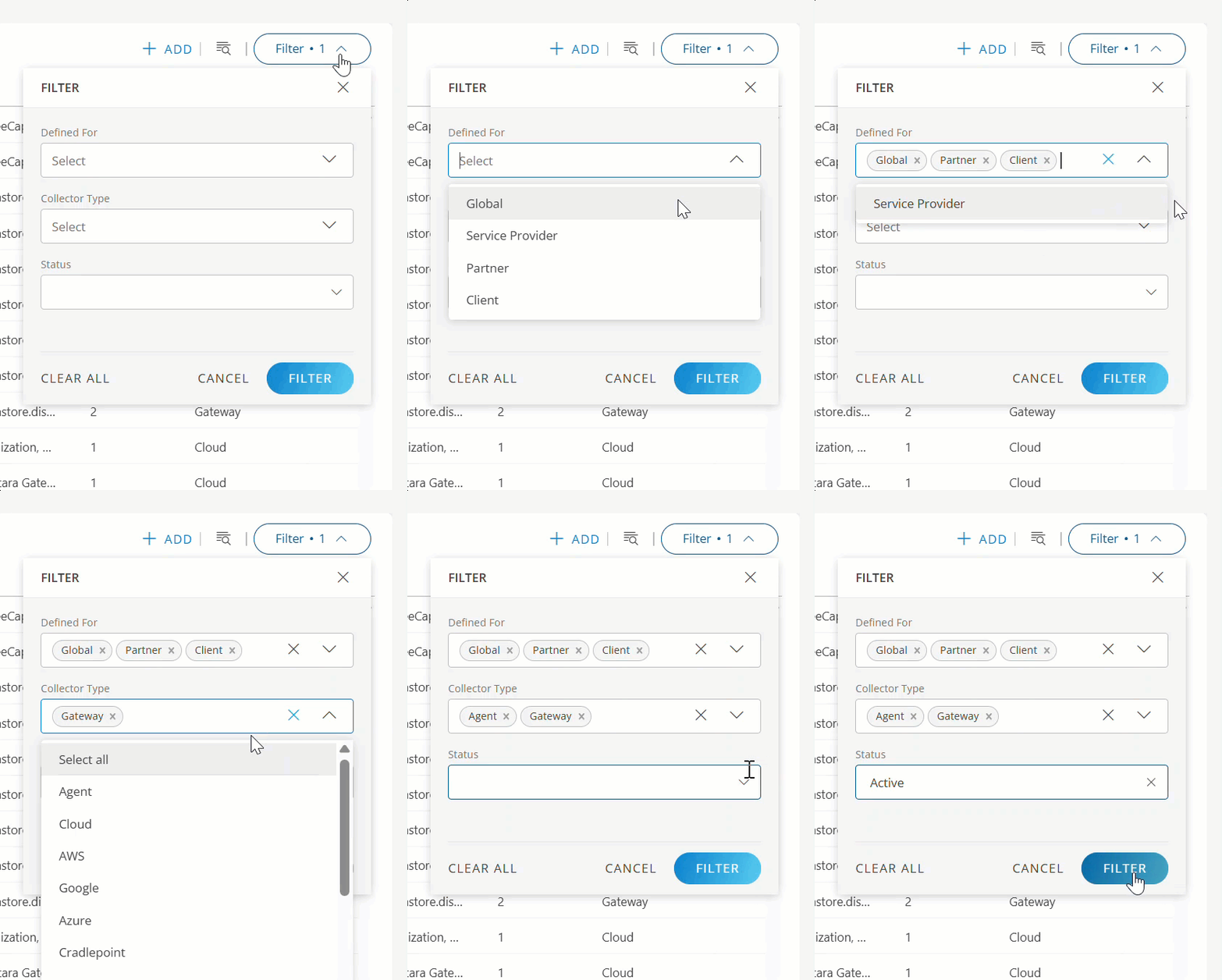
You can filter templates to refine your search results.
To filter templates:
- Click the Filter drop-down in the top left corner of the Templates page.
- Select the filter criteria from the available options.
- Click Filter.
The system displays templates matching your filter criteria.
Available Templates
OpsRamp offers out-of-the-box monitoring templates for various integrations. For a complete list of available templates to see all the templates for your resources, see the Recommended Templates page.
Discover and Onboard the resources
If you have to apply a monitoring template, first you need to discover the devices. To discover the device, you need to goto Integrations and install the integrations. This is how you onboard the devices. Based on the integration, refer to the Recommended Templates page for the supporting monitoring templates for the device.
View Supported Monitoring Templates
To view all monitoring templates supported by OpsRamp, refer to the Integrations page. Use this information to select the appropriate template for your discovered devices.
Select Monitoring Templates for Discovered Devices
You can identify the appropriate monitoring template for your discovered devices from the list of recommended templates.
After selecting a template, you can either copy an template to the partner or client scope. Or, to define a new template for your custom requirements, you can create a new template. Both procedures are described in the following sections.
Copy a Template
After you select an appropriate monitoring template, you can copy it at the SP, partner, or client scope for use.
To copy a template:
- Click the action icon (three dots) in the right corner of the template row.
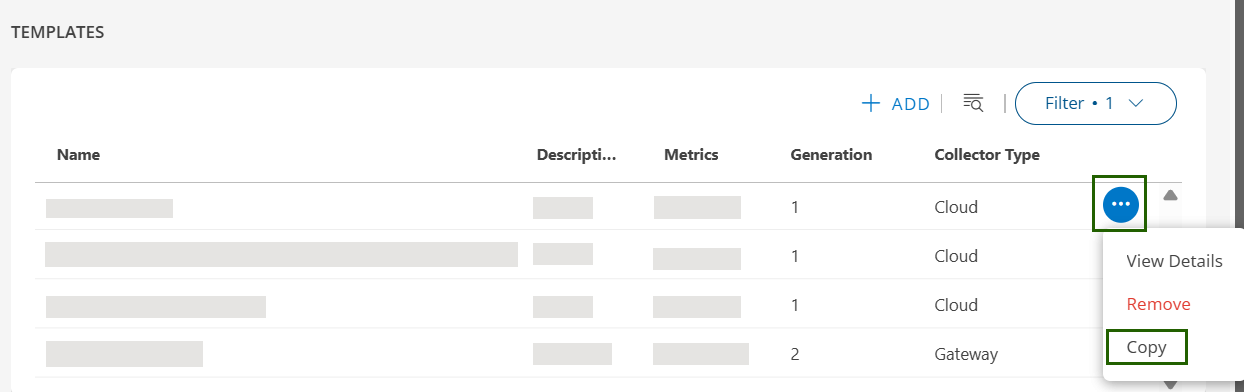
- Click Copy.
- Modify the editable fields as needed.
- Click Save.
The template is copied and available for use.
Create a Template
Important: Most of the monitoring templates are available as part of the OpsRamp global templates under Recommended Templates page. If you wish to create your own monitoring template, the following section explains how to do that. We highly recommend that you firts check the recommended templates and utilize them by closing it for your purpose.
To create a new template:
- Navigate to Setup > Account > Monitoring.
- Click Templates.
- Click +Add.
The ADD MONITORING TEMPLATE page appears.
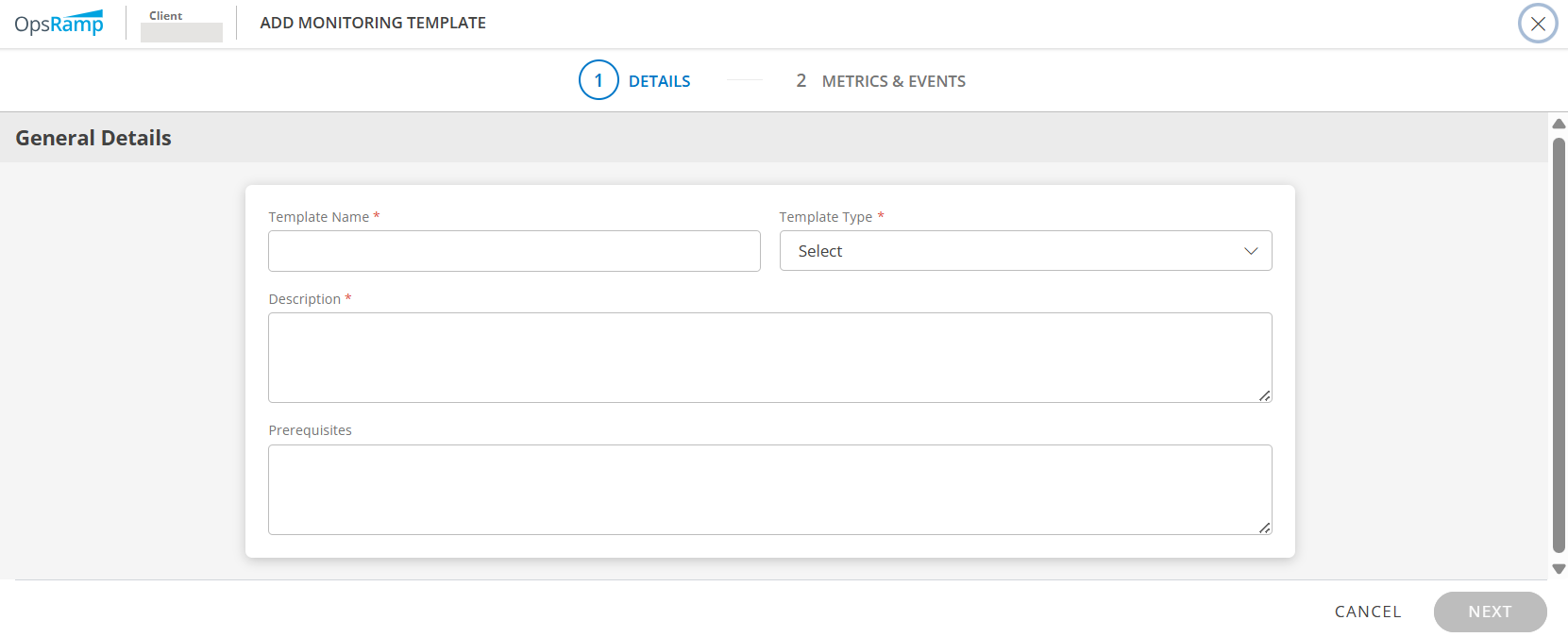
- Enter the following information:
| Field | Description |
|---|---|
| Template Name | Enter a descriptive name for the template. For example, G2 MSSQL Database Transactions Time Template. |
| Template Type | Select the template type from the drop-down list. For example, Application. Note: If you select Application, you must also select a value from the Application Type drop-down. If you select Other Agent Based Template, you must select a value from the Agent Based Metric drop-down. |
| Description | Enter a summary of the template's purpose and functionality. |
| Prerequisites | List any requirements or considerations for monitoring with this template. For example, verify that SQL services are running when monitoring SQL parameters using Windows templates. |
- Click Next.
The Metrics and Events tab appears.
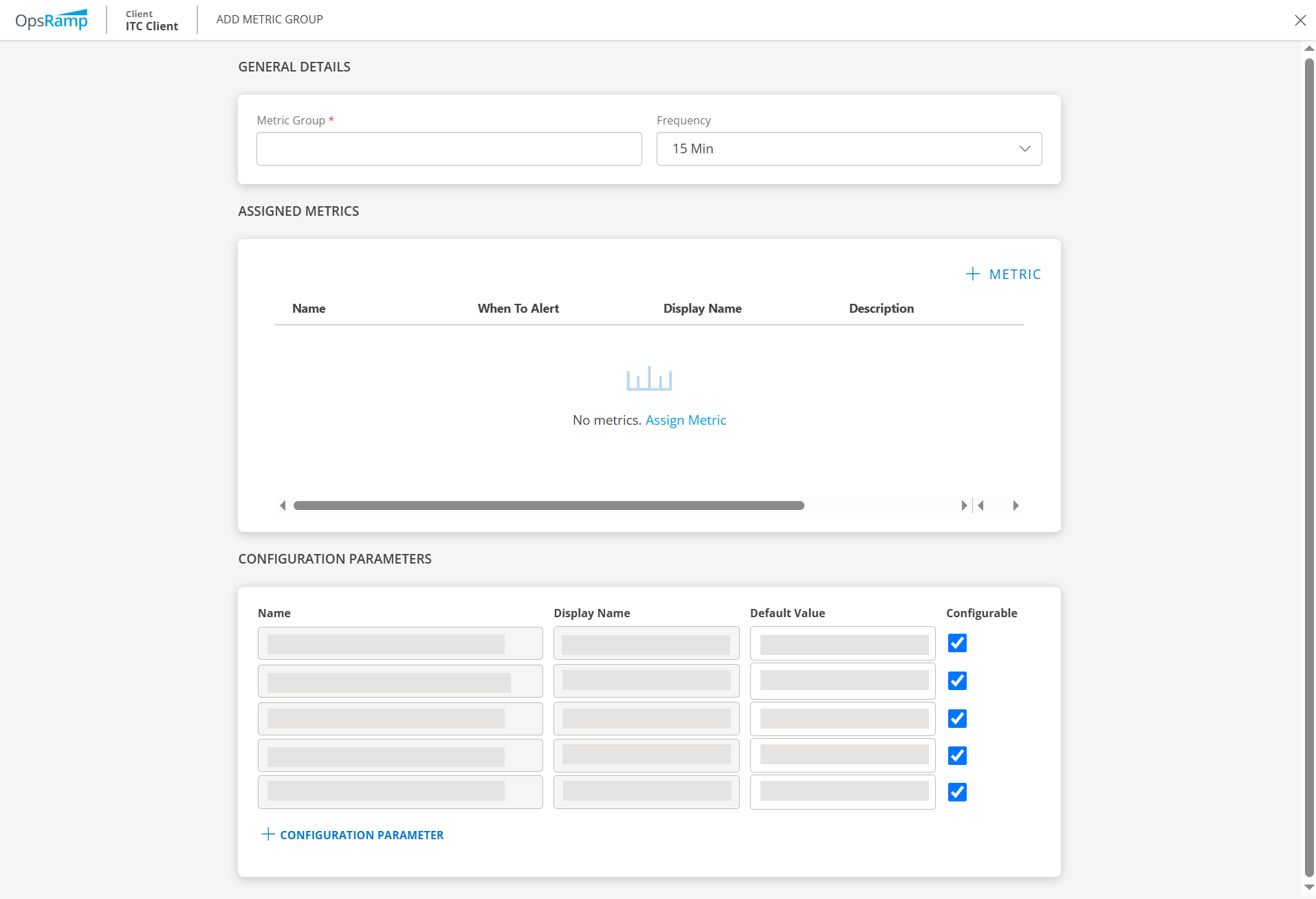
- Click Add Metrics Group.
- Enter the following information and click Add Metric Group:
Note
You must add at least one metric group to create a template.| Field | Description |
|---|---|
| General Details | Enter the Metric Group name and select the monitoring Frequency from the drop-down list. |
| Assigned Metrics | Click Assign Metric to add metrics to this template. |
| Configuration Parameters | Click +Configuration Parameter to add parameters to the metric group. |
- Click Finish.
The template is created and appears in the Templates listing page.
Edit a Template
To edit an existing template:
- On the Templates listing page, locate the template you want to modify.
- Click the template name.
- Make the necessary changes.
- Click Save.
The template is updated with your changes.
Note
You cannot add duplicate metrics in G2 templates.View Template Details
To view detailed information about a template:
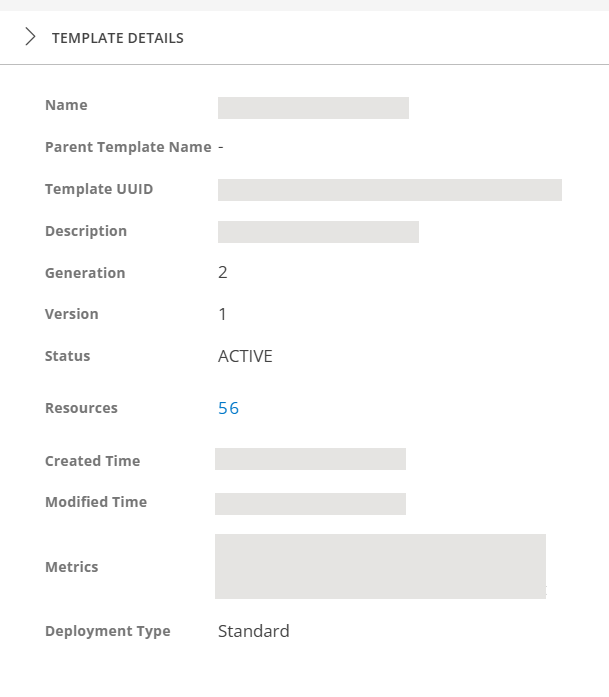
- On the Templates listing page, click anywhere on the template row.
The Template Details slide-out panel displays the template information.
Alternatively:
- Click the action icon (three dots) on the left side of the template row.
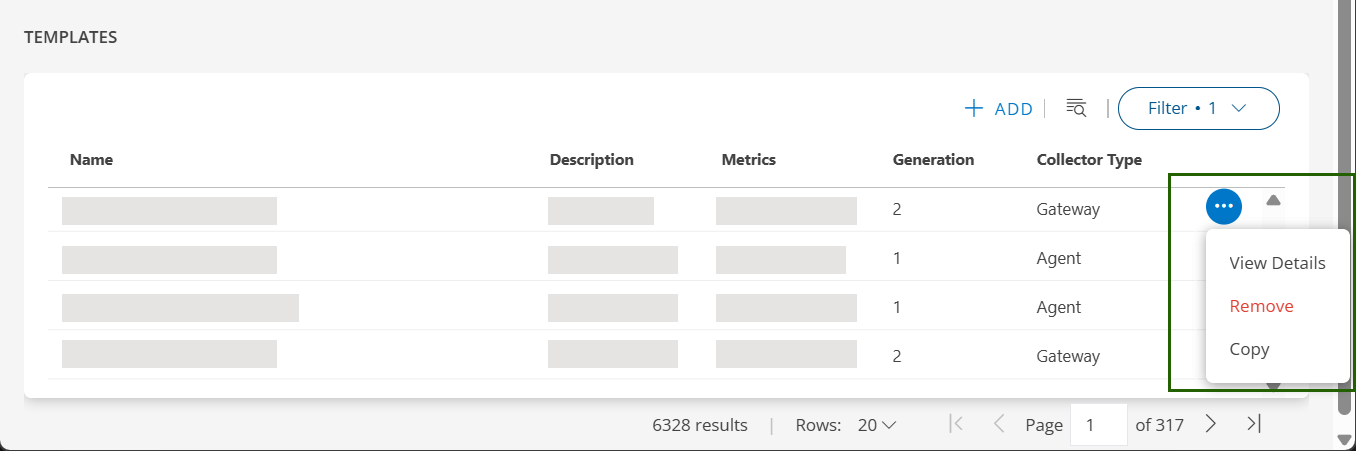
- Click View Details.
The system displays the complete template details.
Assign a Template
You can assign a monitoring template to a single resource or to multiple resources.
Assign a Template to a Single Resource
To assign a template to an individual resource, see Assign/Un-assign Templates to a Resource.
Assign a Template to Multiple Resources
To assign a template to multiple resources simultaneously, see Create Alert Definition.
Verify Monitoring Configuration
After assigning a template, verify that monitoring is functioning correctly.
For detailed verification procedures, see:
Check Resource Alerts
To view alerts generated on resources, see the Alerts page.
Unassign a Template
Unassign from a Single Resource
To remove a template assignment from an individual resource, see Assign/Un-assign Templates to a Resource.
Unassign from Multiple Resources
To remove a template assignment from multiple resources, contact your system administrator or refer to your organization’s template management procedures.