Events are generated on monitored resources and may be converted into alerts based on defined criteria. OpsRamp supports event generation for the following resource types:
- VMware
- Cisco HyperFlex
- Cisco UCS
- Citrix Cloud VDA Server
- EMC CLARiiON
- EMC VNX
- Microsoft Hyper-V
- Viptela
Create an Event
You can create events at the Service Provider, Partner and Client scopes. Follow these steps to create an event:
Navigate to Setup > Account > Monitoring.
Select the Metrics & Events tab.
In the Events tab, click +ADD. The ADD EVENT page is displayed.
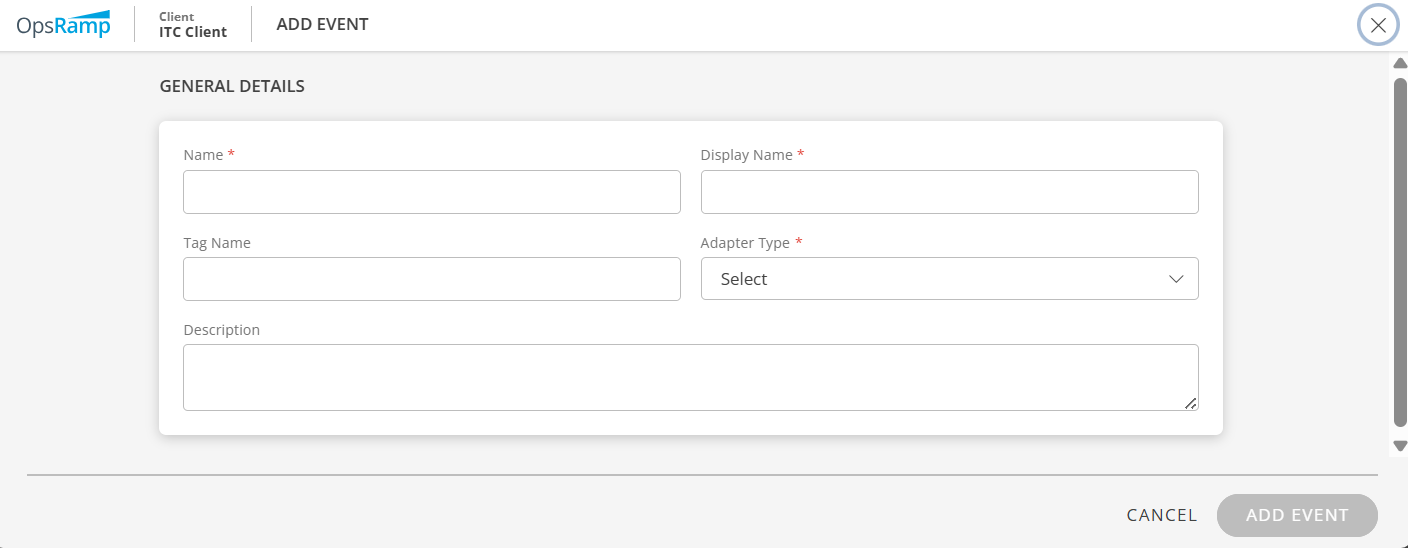
Enter the following field details:
Field Description Name Unique name for the event. For details, see the Event name format section. Display Name Unique display name. Tag Name User-defined name for filtering. Adapter Type Select from VMware, Cisco UCS, EMC VNX, etc Description Event description. Click ADD EVENT.
The event will be available in the list under Events.
Apply the event monitoring template on the resources. Based on the monitoring frequency, OpsRamp converts the events into alerts and shows the alerts in the alert browser.Sample alert:

Event name format
The following are acceptable formats for an event name:
- Event names should not contain a dot (.), instead use an underscore (_) between the words.
hyperflex.cluster.event.ClusterPolicyComplianceFailedEventis not validhyperflex_cluster_event_ClusterPolicyComplianceFailedEventis valid - An event name can have a maximum of ten underscores “_”. An event name cannot start or end with an underscore.
- An event name can contain numeric values (0-9), but cannot start with a numeric value.
- An event name should be case-insensitive.
- The length of the event name should be less than or equal to 255, including underscores.
View Events
You can view the list of all events in the Events page.
The following table provides details of each field.
| Attributes | Description |
|---|---|
| Name | Event name. |
| Display Name | Display name for the event. |
| Adapter Type | Adapter Type |
| Application Type | Technology associated with the event. |
| Description | Event description. |
Update an Event
To update event details:
- Search for the event using the search icon and click the event name. The event details are displayed.
- Make the necessary changes and click Save. The event is updated.
Export an Event
The Export functionality allows you to save an event in CSV or JSON format.
Follow these steps to export an event:
- Search for the event(s) you want to export.
- Select the event(s) and click Export.
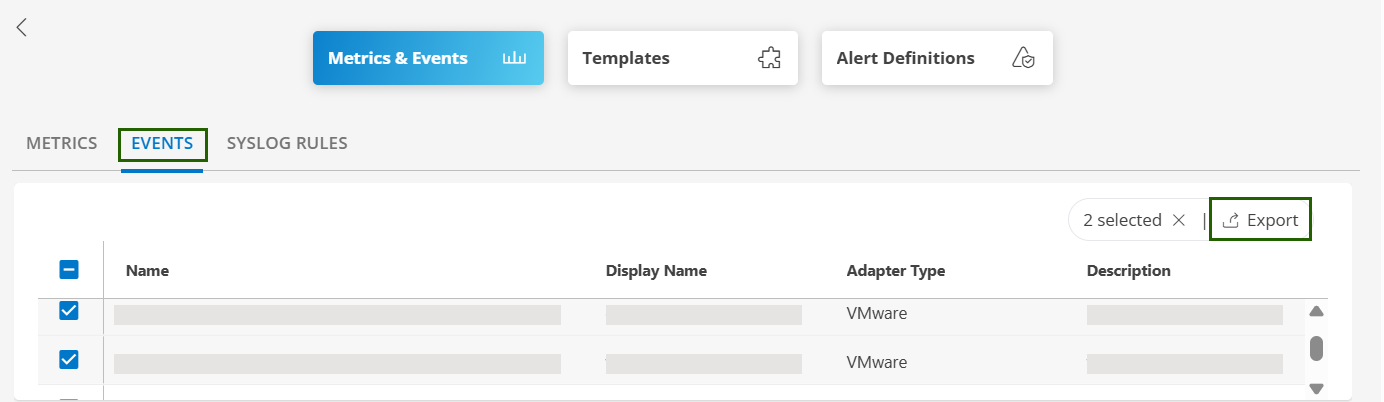
- Select the required format: JSON or CSV. The event is exported in the selected format.
Note
If no specific event(s) are selected before exporting, all the available events in the scope will be exported, by default.
Import an Event
The Import functionality allows you to import a CSV or JSON formatted event file as an event. Follow these steps to import an event:
- In the Events tab, click the Import icon and then click Upload.
- Select a file to upload. Supported file formats are JSON or CSV.
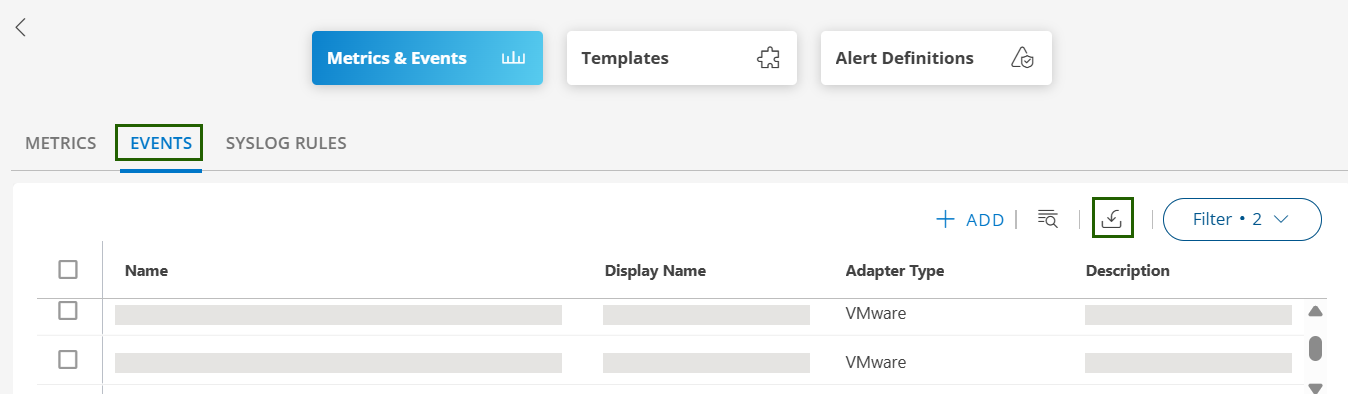
- Click Import. The event is imported and the details are shown on the Import Metrics page.
If the import fails, a message is displayed with the reason for the failure.