Introduction

The topology explorer is where you can view the organization of resources, providing a logical representation of how they are related to one another.

You can also view the visual representation of nodes and links, save views, search for specific resource and perform different actions provided in the explorer.
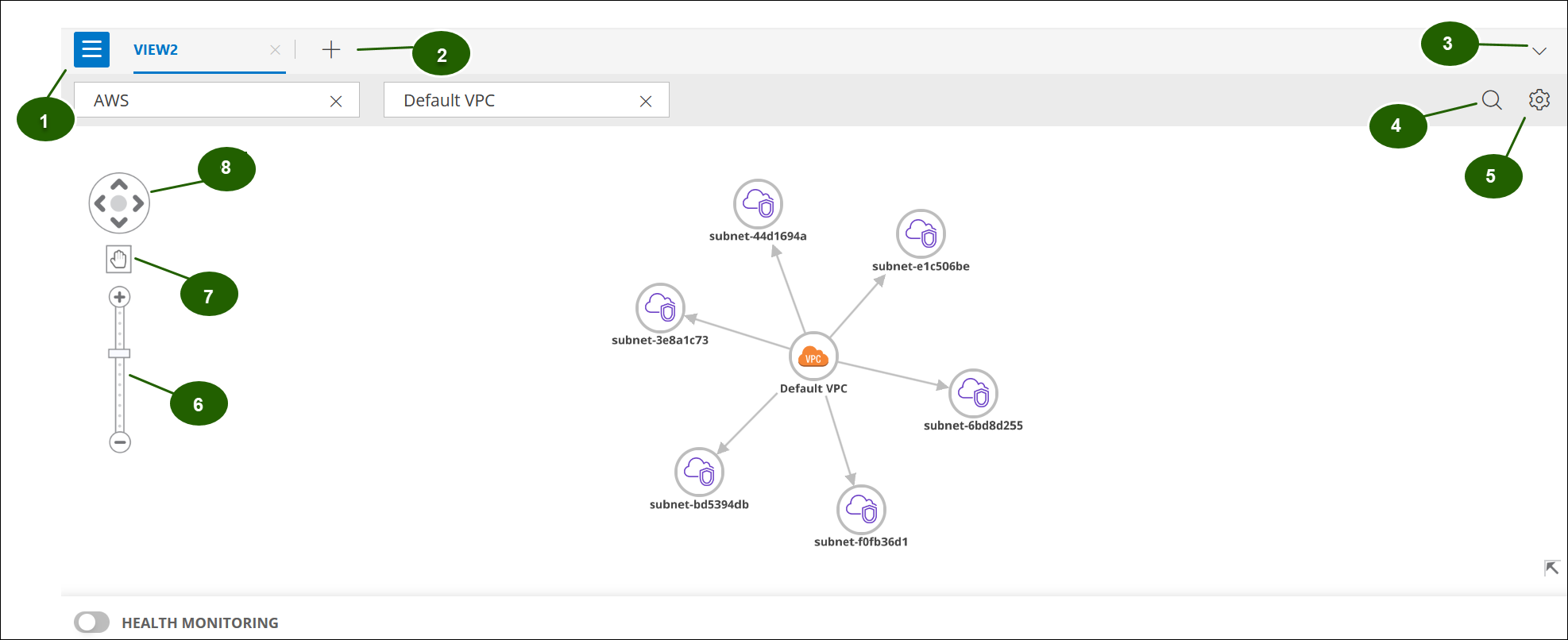
topology explorer

Topology Options


CalloutDescription
1Click the hamburger menu to access the Add Current View and Favorite sections.
Topology hamburger menu
2Click + icon to open a new tab. You can view multiple tabs in a single explorer window.

New View
3Click the down arrow icon to switch between the views.

Switch between views
4Use the search icon to search for the nodes. Search using resource name.

Search topology box
5Click to access View Settings that has the Direction, Depth and Layout options.
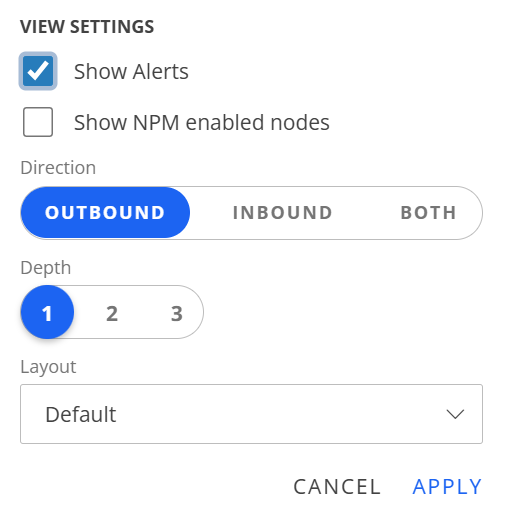
View Settings
  • Show Alerts: Displays the total number of alerts (warning and critical) associated with the node.
  • Show NPM enabled nodes: Allows you to visualize NPM-enabled devices in the topology map. However, only the resources selected (whitelisted) in the Resources section of the NPM integration configuration will be displayed as NPM nodes.
  • Direction refers to the orientation of relationships between nodes, indicating whether the connection is incoming, outgoing, or bidirectional. This setting helps you visualize and analyze the direction of relationships or dependencies across the topology.
  • Depth refers to the level of topology you want to view. You can specify view levels up to Depth 3.
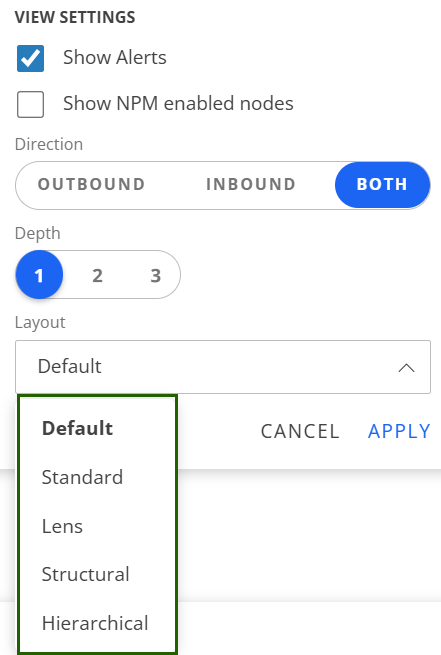
  • Select the layout you want to view from the available Layout options.

    Topology layout options
6Use the Zoom in and Zoom out tool on the topology map to change the scope of the visualization. When a map is viewed at a low zoom resolution, icons are displayed with a reduced size, the edges are thinner and the label names appear hidden.

Topology Zoom-in and Zoom out tool
7
  • Use the hand tool to move the topology map.
  • Use the arrow tool to drag a node from one place to another.
  1. Click to switch the tools from hand to arrow and vice versa.
Topology Zoom-in and Zoom out tool
8The vertical and horizontal navigation arrows scroll the topology map vertically and horizontally.
  1. Click the navigation arrows to move the topology map.
Topology navigation arrows