Introduction
OpsRamp supports the installation of a collector in both virtualized and cloud-native environments. The installation process in both environments is achieved in a single unified flow as shown below.
Install a collector
Follow these steps to install a collector:
Navigate to Setup > Account. The Account Details page is displayed.
Click the Collector Profiles tile. The Collector Profiles page is displayed.
Click +Add.

Enter following details in the gateway collector profile page:
- Enter a profile name
- Provide the short description (Optional)
- Select a profile type
Select one of the collector from below as per your requirement:
- Amazom Machine Image
- Virtual Appliance (ISO)
- Virtual Appliance (OVA)
- Azure Blob Container
- Google Image
- Virtual Appliance (ISO) - NextGen
- Virtual Appliance (OVA) - NextGen
- Cloud-Native Application (Installer) - NextGen
- Installer for Windows OS
Click Next.

Download the required file.
Follow the instructions to install and register the Gateway Collector.
Click Finish. The gateway is added to the collector profile.
See Classic Gateways and NextGen Gateways for more information on installing a gateway.
After creating the collector profile and installing the gateway and registering it, you can see all the available collector profiles in the Collector Profiles listing page.
The Collector Profiles listing page consists of the following columns:
| Column | Description |
|---|---|
| Name | Name of the Collector Profile. |
| Status | Displays the status of the collector profile:
|
| Gateway Resource Name | Name of the gateway. |
| Type | Type of gateway: NextGen, Classic, or Windows. |
| Installed Apps | Number of Apps or Integrations that are installed. |
| Discovery Profiles | Number of mapped Discovery Profiles. |
| Managed Resources | Number of resources that are managed by the gateway. |
| Version | Current gateway version. |
| SIP Agent | Click the toggle button to enable or disable the SIP Agent. |
| Synthetics Agent | Click the toggle button to enable or disable the Synthetics Agent. |
| Model Number | Model number of installed gateways. (Example: Classic gateway model number starts with OG, NextGen starts with ONG, Windows starts with OWG). |
| Namespace | All NextGen Gateways show the Kubernetes namespace in which the gateway is deployed. For Classic and Windows Gateways, this field displays N/A. |
Filter
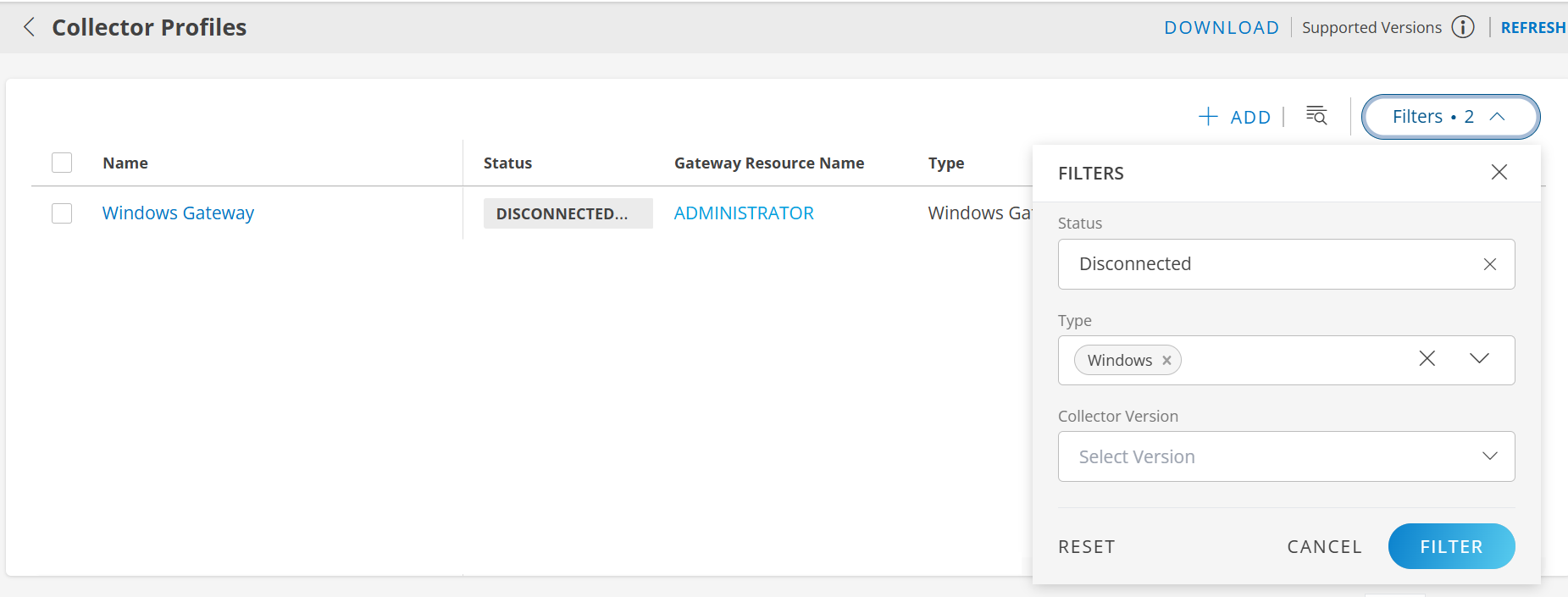
You can use the Filter option to narrow down search results.
- Navigate to Setup > Account. The Account Details page is displayed.
- Click the Collector Profiles tile. A list of collector profiles is displayed.
- Click Filter option.
- Select Status, Type, and Collector Version from the dropdowns.
- Click FILTER. The search result is displayed.
Actions on a collector profile
| Action | Description |
|---|---|
| Rename | To rename a collector profile:
|
| Detach | To detach a collector profile:
|
| Reinstall | To reinstall a collector profile:
|
| Remove | To remove a collector profile:
|
| Scale Up | Scale Up is available only for Elastic type collector profile. To scale up:
|
| Reboot Gateway | To reboot the gateway:
|
| Reset Password | To reset the gateway password:
|
| Copy Id | To copy gateway UUID:
|